
Connect two cabinets for Co-op
Open TC5 Online on both cabinets and save a player name on each. One player selects Host · P1 and the other selects Join · P2. The host gets ready first.
First connection
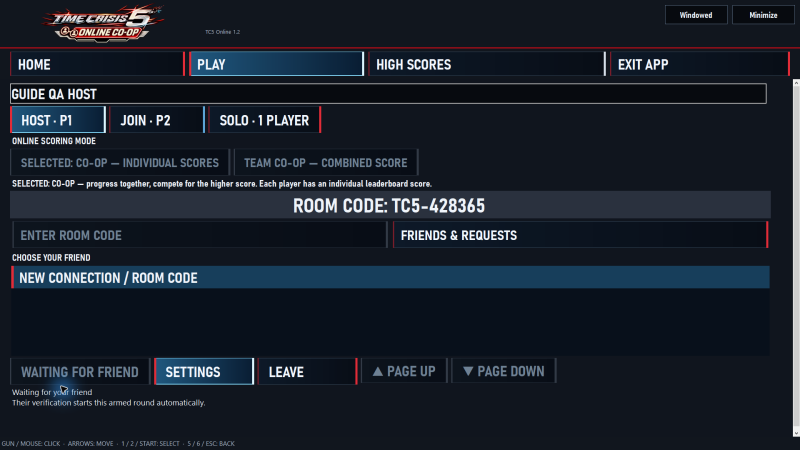
- Host · P1. On the Play screen, choose Host · P1, then New Connection / Room Code and Host & Play Co-op. Wait for the host’s current room code to appear and share it privately with the guest.
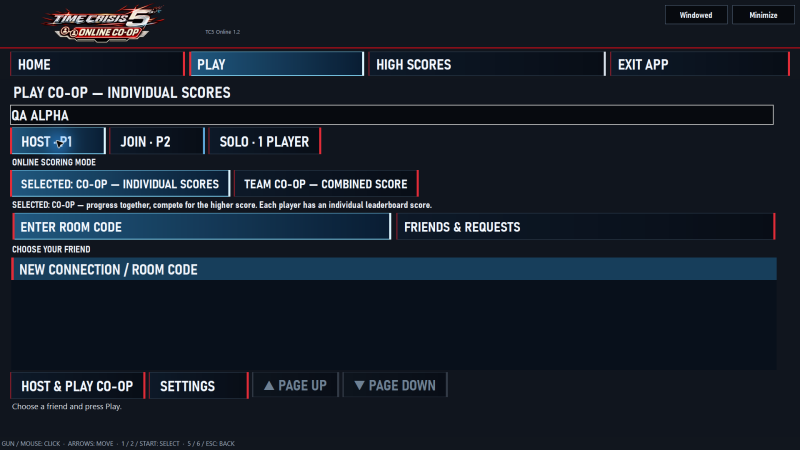
The host starts the room before the guest joins. 
This expired test code shows where the room code appears. Share the current code from your own host screen. Tap the image to see the full screen. - Join · P2. Once the host is ready, choose Join · P2 and Enter Room Code. Enter the six digits after
TC5-, then select Join. Keep both apps open and follow the Play prompts.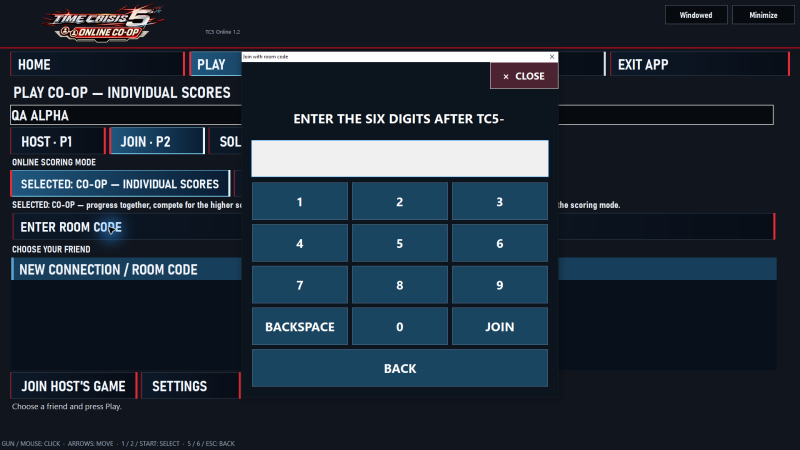
Enter the digits from the host’s current code. The example keypad is blank.
Reconnect from your friends list
After the first successful room-code connection, each player is saved to the other’s friends list. Use the saved name for future sessions.
- The host chooses Host · P1, selects the other player’s saved name under Choose Your Friend, and selects Host & Play Co-op.
- When the host is ready, the guest chooses Join · P2, selects the host’s saved name, and selects Join Host’s Game.
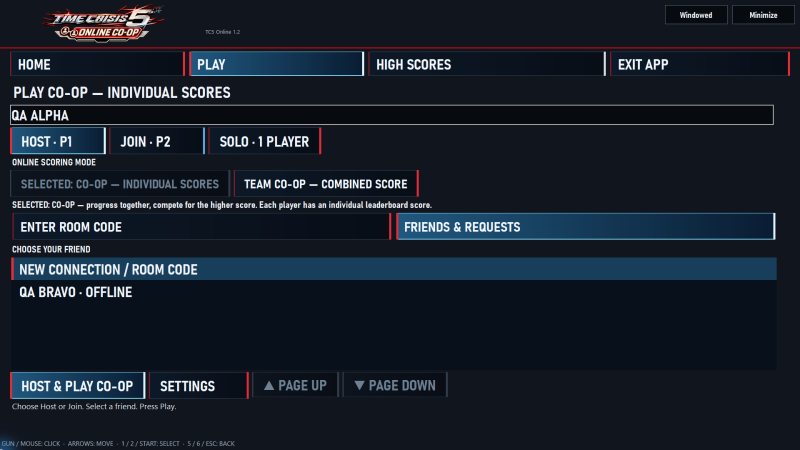
If the name is missing, reconnect with a fresh room code from the host.